
What Is a Shell?
The Big Picture
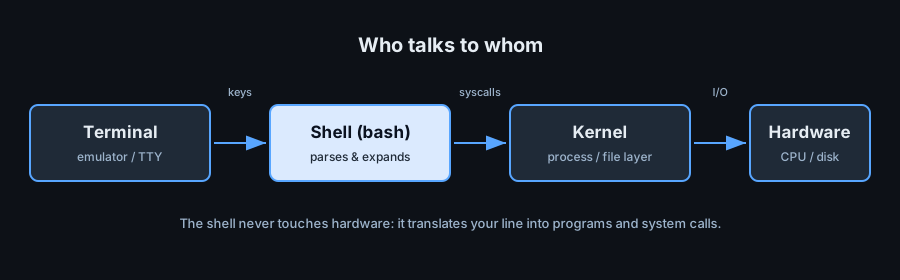
Before you write a single script it pays to know exactly which program you are talking to. Beginners say "the terminal", "the console", and "the shell" as if they were the same thing. They are three cooperating layers, and mixing them up makes every later error harder to debug.
Terminal vs Shell
A terminal emulator (GNOME Terminal, macOS Terminal, Windows Terminal, Git Bash's mintty) is a graphical program that draws text, captures your keystrokes, and forwards them to another program. It has no idea what a pipe or a variable is.
The shell is the program on the other end of that connection. It receives the characters you type, interprets them as a command line, and decides what to run. Bash is one shell among many; others are covered in the next lesson.
You can prove the split yourself. Print your shell, then print the terminal:
echo "$SHELL"     # /bin/bash  — the program interpreting your commands
echo "$TERM"      # xterm-256color — the terminal type the shell believes it is talking to
tty               # /dev/pts/0  — the pseudo-terminal device backing this session
If you start a nested shell with bash and print $SHELL again you will still see the login shell path, because $SHELL is inherited, not recomputed. Use echo $0 or ps -p $$ to see the shell that is actually running.
The Kernel
The kernel is the core of the operating system. It owns the CPU, memory, files, and devices, and it exposes them through system calls. The shell is an ordinary user program: it cannot read a file or start a process by itself. It asks the kernel.
When you type ls, the shell does not list the directory. It forks a child process, runs /bin/ls in it, and that program calls the kernel. The kernel also keeps a list of environment variables that the shell maintains on your behalf — which is why variables are the bridge between shells and programs.
Two practical consequences follow from this design:
- Anything the shell cannot do, it delegates to a program found on disk (the external command).
- Things the shell must do in its own process — changing directory, setting variables — are builtins, because a child process could not change the parent.
The Command Loop
An interactive shell is an endless loop. Understanding its four steps is the fastest way to stop being surprised by what Bash does.
Read, Evaluate, Execute
- Read a line (or several, until the syntax is complete).
- Tokenise it into words, operators and redirections.
- Expand it — braces, variables, commands, arithmetic, globs (see the expansion lesson).
- Execute the result, then store the exit status in
$?and loop.
echo "Today is $(date +%F)" # read -> expand $(date +%F) -> run echo
The shell keeps working until it sees end-of-file. Press Ctrl-D at a prompt to send EOF and leave the shell — that is the same signal a script sees when it reaches its last line.
What the Shell Forwards
The shell itself is thin. It handles a small set of syntax (quotes, pipes, operators, expansion), executes the shell's own builtins, and hands everything else to a program on disk.
type echo        # echo is a shell builtin
type ls          # ls is /usr/bin/ls
This division explains a classic confusion: why cd changes your directory while /bin/ls cannot. cd must run inside the shell process to affect it. See the syntax lesson for the full picture.
Why Bash Matters
Shell scripts are the glue of Unix. Every build, deployment, container entrypoint and CI job is a shell script somewhere. Bash matters because it is the richest widely-installed member of the family.
Where Bash Runs
- Servers: the default login shell on most Linux distributions.
- Containers: many images include Bash; Alpine includes only
sh(BusyBoxash). - CI/CD: GitHub Actions, GitLab CI and Jenkins all shell out to Bash by default.
- macOS: ships Bash 3.2 for licensing reasons — feature-poor compared with Linux Bash 5.
- Windows: via WSL2, Git Bash or Cygwin (covered in the setup lesson).
${var,,} may work on Linux and fail on a Mac. Test on both, or write POSIX sh.
Your First Commands
Six commands take you a long way. Try them in order and read the output carefully.
whoami              # who am I logged in as
pwd                 # where am I
ls -la              # what is here (including hidden files)
echo "$PATH"        # where does the shell look for programs
env | sort | head   # what environment did I inherit
history             # what have I typed before
Notice that env | sort | head uses a pipeline: three programs chained so each feeds the next. That single idea — small tools composed with | — is the heart of the Unix philosophy.
Finding Help
You never need to memorise everything. These four sources answer almost every question.
man ls              # the manual page for ls (q to quit)
ls --help           # a quick usage summary
help cd             # documentation for a shell builtin
type -a grep        # which grep(s) exist and in what order
When the manual is too terse, the free sources on the References & Tools page fill the gap. Learning to read man pages is itself a skill worth building early.