
I/O Connectors
Diverse Ports
A regular PC has some standard connectors you must learn by name and visual. Sometimes you can enconter situations where you can't recognize all ports. If this is the case you should consult the motherboard user manual. Some ports are installed on front of computer, some are installed in the back:
Front Ports
Some older computers come with front panel ports. Modern computers have almost no front-end ports. In the picture below you can also see an accesory that you can install in a free bay to create additional ports. You must connect the front panel cables to the motherboard to enable the ports and the buttons to function.
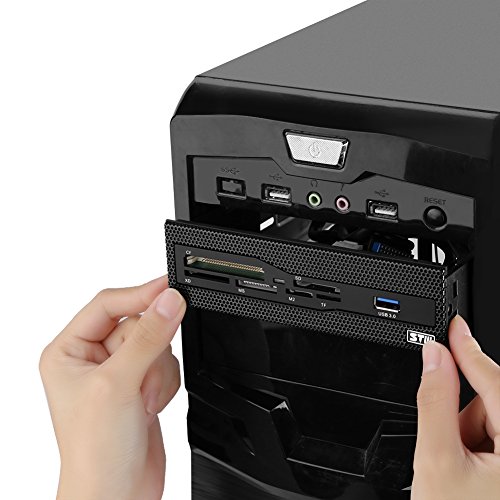
Front Panel & Extension Ports
Read Ports
Ports are also called IO ports. Most ports are in the back of the computer. There is a back-plate that is pack with multiple ports. Some ports can be installed using extension cards. For example GPU can create additional ports for video. Some motherboards have also video ports on the back-pannel.
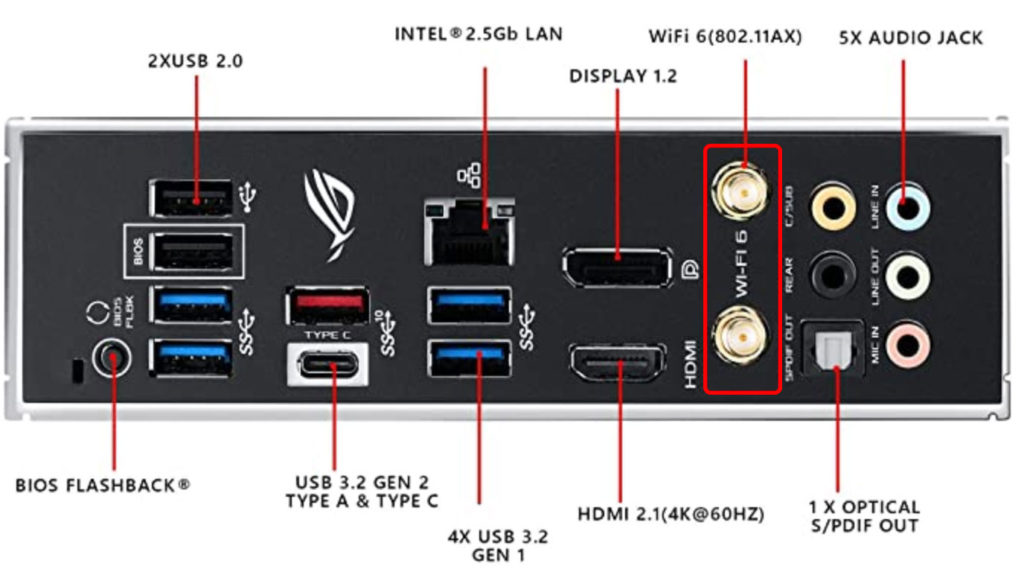
Motherboard IO Read Ports
Port Description
Here is a short description of most important ports:
- HDMI: HDMI ports are used to connect a PC to a TV or monitor. They can transmit both video and audio signals, making them a popular choice for home entertainment setups.
- DVI: DVI ports are similar to HDMI ports, but they only transmit video signals. They are a good option for older monitors that do not support HDMI.
- DisplayPort: DisplayPort ports are another option for connecting a PC to a TV or monitor. They offer higher resolutions and refresh rates than HDMI or DVI, making them a good choice for gamers and other power users.
- USB: USB ports are becoming increasingly common on modern PCs. They are versatile connectors that can be used for a variety of purposes, including connecting to external displays, storage devices, and power sources.
- Thunderbolt: Thunderbolt ports are a type of USB-C port that offers even faster data transfer speeds than USB-C. They are a good option for connecting high-performance devices, such as external hard drives and docks.
- Ethernet: Ethernet ports are used to connect a PC to a wired network. They offer a more reliable and secure connection than Wi-Fi.
- Audio ports: Audio ports are used to connect speakers, headphones, and microphones to a PC. There are a variety of different audio ports, including 3.5mm headphone jacks, optical audio ports, and HDMI ports.
Legacy Ports
In addition to these common ports and connectors, there are a number of other ports and connectors that may be found on some modern PCs. These include ports for connecting legacy devices, such as VGA monitors and serial ports.
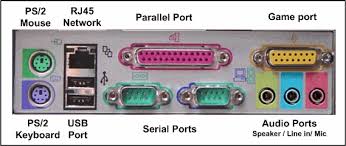
Legacy Ports
Backplate IO
The ports and connectors that are available on a PC will vary depending on the model and manufacturer. It is important to check the specifications of a PC before purchasing it to ensure that it has the ports and connectors that you need. Important to notice the standard backplate.
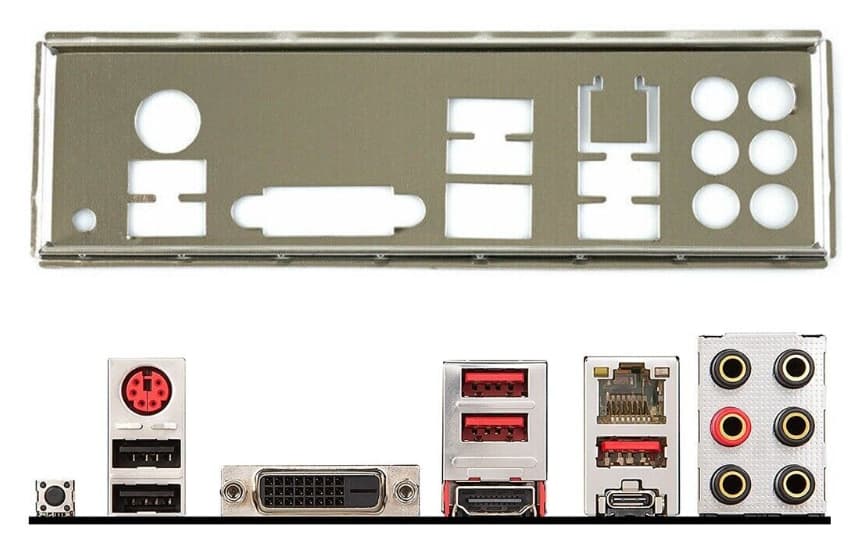
IO Backplate
The backplate IO is a metal plate that is attached to the back of a motherboard. It contains the ports and connectors that are used to connect the motherboard to external devices, such as monitors, keyboards, and mice. The backplate comes with the motherboard. Each motherboard can have a different back-plate of standard size.
The backplate IO is important for several reasons. First, it helps to protect the motherboard's ports and connectors from damage. Second, it provides a grounding point for the motherboard, which helps to prevent electrostatic discharge (ESD). Third, it helps to improve the airflow around the motherboard, which can help to keep it cool.
The backplate IO is typically made of metal, such as aluminum or steel. It is usually painted black to match the color of the motherboard. On modern motherboards, the backplate IO is held in place by screws that are threaded into the motherboard.
When installing a motherboard, it is important to make sure that the backplate IO is properly installed. If the backplate IO is not installed correctly, the motherboard's ports and connectors may be damaged. Install the backplate first, from inside out the computer case, before you put on the motherboard.
Universal Serial Bus (USB)
USB is a standard for connecting peripheral devices to computers. It is a serial bus, which means that data is transferred one bit at a time. USB is a very popular standard, and it is used to connect a wide variety of devices, including keyboards, mice, printers, external hard drives, and smartphones.
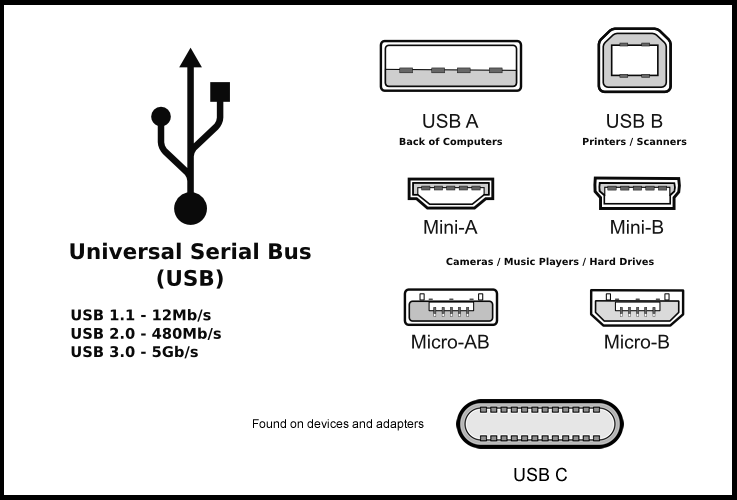
USB Connectors
Different USB standards have different speed and different cables. Understanding various cables is a nightmare. Let's make a table to explain diverse generations of USB.
| Standard | Maximum Data Transfer Speed | Also Known As |
|---|---|---|
| USB 1.0 | 12 Mbps | Hi-Speed |
| USB 2.0 | 480 Mbps | Full-Speed |
| USB 3.0 | 5 Gbps | SuperSpeed |
| USB 3.1 | 10 Gbps | SuperSpeed+ |
| USB 3.2 | 20 Gbps | SuperSpeed 20 |
| USB 4 | 20 Gbps | 20Gbps |
The latest USB standard is USB 4. It supports data transfer speeds of up to 20 Gbps, and it is backward compatible with previous USB standards.
USB is a very versatile standard, and it is used to connect a wide variety of devices. It is a reliable and efficient way to connect peripherals to computers, and it is likely to be the standard for many years to come.
Different USB Connectors
There are many different USB connectors available, each with its own advantages and disadvantages. Here is a brief overview of the most common USB connectors:
- USB-A: This is the most common USB connector. It is rectangular in shape and has a flat top. USB-A connectors are found on most computers and other devices.
- USB-B: This connector is square in shape and has beveled corners. It is typically used for printers, scanners, and other high-powered devices.
- Micro-USB: This connector is smaller than USB-A and USB-B. It is commonly used for smartphones, tablets, and other portable devices.
- USB-C: This connector is the newest USB connector. It is reversible, so it can be plugged in either way. USB-C connectors are becoming increasingly common on laptops, smartphones, and other devices.
| Connector | Shape | Dimensions | Usage |
|---|---|---|---|
| USB-A | Rectangular | 11.5 mm x 4.5 mm | Computers, peripherals, chargers |
| USB-B | Square | 10.16 mm x 6.35 mm | Printers, scanners, external hard drives |
| Micro-USB | Rectangular | 5.8 mm x 2.1 mm | Smartphones, tablets, cameras |
| USB-C | Oval | 8.35 mm x 2.5 mm | Laptops, smartphones, tablets, docks |
The table above shows the different USB connectors, their shapes, dimensions, and typical usage. When choosing a USB connector, it is important to consider the type of device you are connecting and the data transfer speeds you need.
USB Cables
Unfortunatly when you look at a USB cable you do not realize if the cable is good or not good for your purpose. Cables can have different connectors or same connector at both ends. Usually the cable is the male connector while the device has the mother connector. USB-C is different.
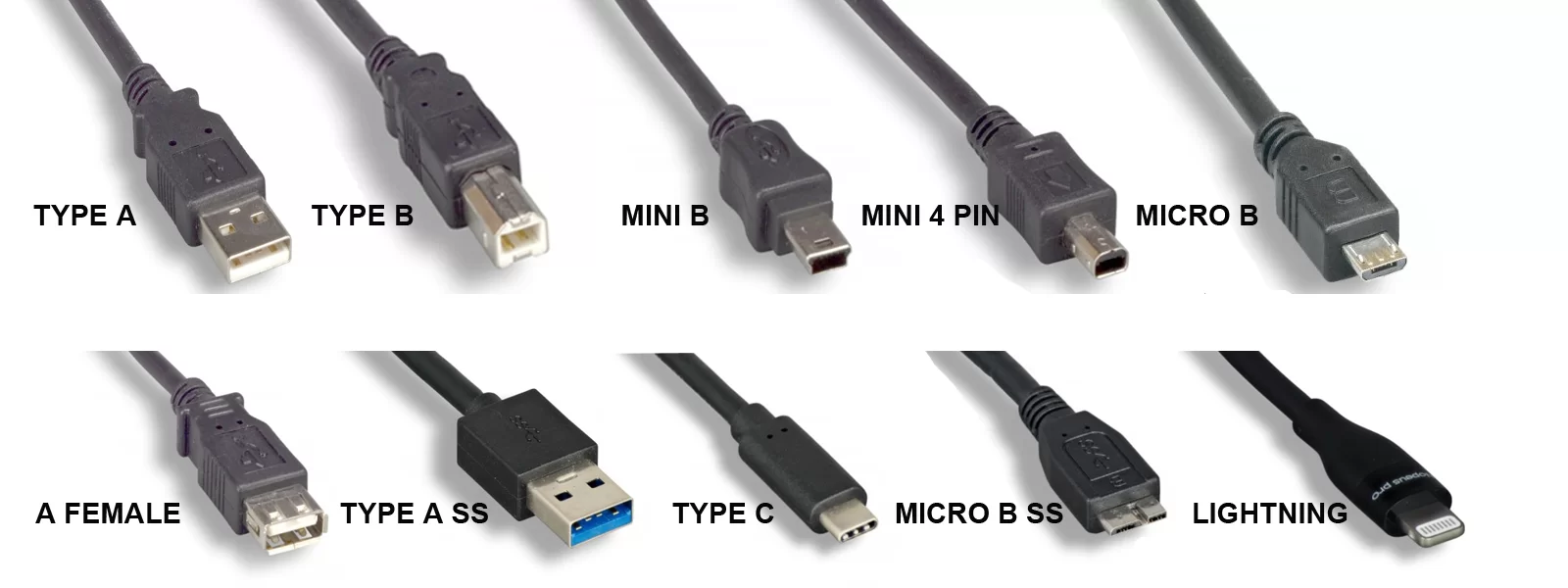
USB Cables
USB Adapters
Is nothig more frustrating than having the wrong cables, none of it matching your use-case. Then you can use an addaptor. Adaptor can solve the problem. Using adaptor is bad practice. Use this sollution only where the cable is missing or is too short. Sometimes you need to connect two cables together to make the cable longer.
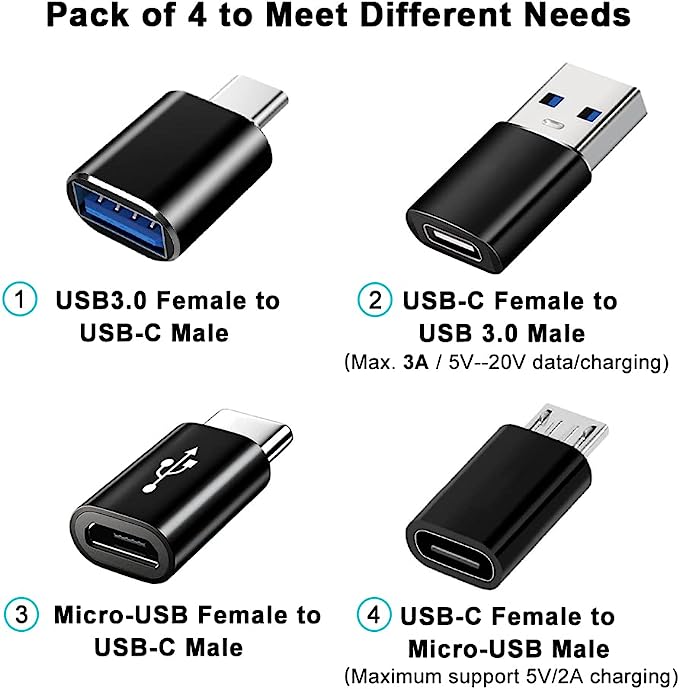
USB Cables
Video Connectors
There are a few different video connectors that can be used to connect a TV, smart TV or computer. The most common connectors are HDMI, DVI, and VGA. This domain is also confuzing for non technical persons.
HDMI (High-Definition Multimedia Interface) is the most popular video connector. It supports high-definition video and audio, and it is backward compatible with DVI.
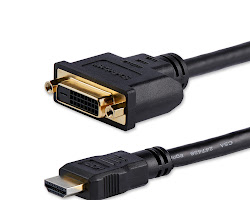
DVI-HDMI Cable
DVI-D (Digital Visual Interface) is another popular video connector. It supports high-definition video, but it does not support audio. DVI-D signal is not compatible with VGA.
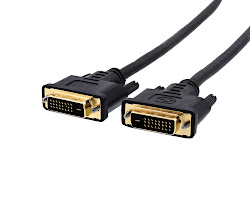
DVI-D cable
VGA (Video Graphics Array) is an older video connector that is still supported by some TVs and computers. It does not support high-definition video, but it is a good option if you are connecting a device that does not have an HDMI or DVI port.
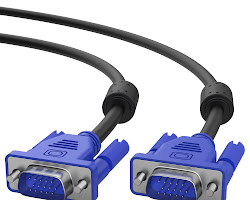
VGA cable
In addition to HDMI, DVI, and VGA, there are a few other video connectors that are less common. These include:
- DisplayPort
- S-Video
- Component Video
- Coaxial Cable
DisplayPort is a newer video connector that is gaining popularity. It supports high-definition video and audio, and it can also be used to connect multiple monitors.
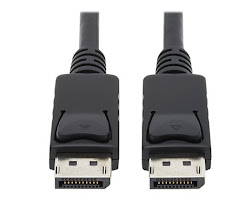
DP (display port)
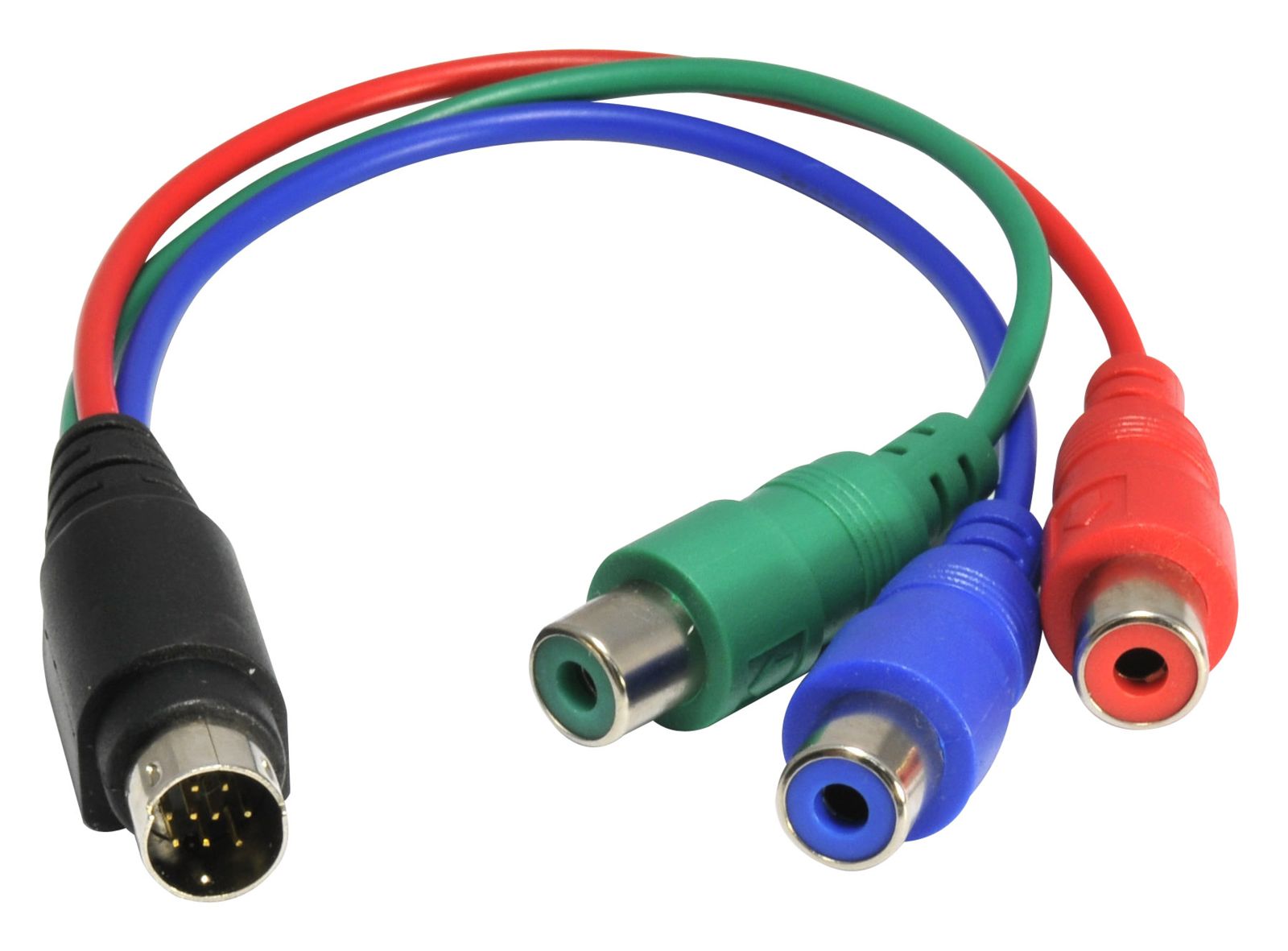
Component Video: Component Video is an analog video connector that is used to transmit separate signals for the red, green, and blue components of the image.
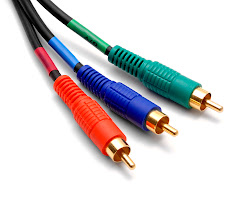
Component Video
S-Video: S-Video is an analog video connector that is commonly used to connect older devices, such as VCRs and DVD players.
S-Video cable
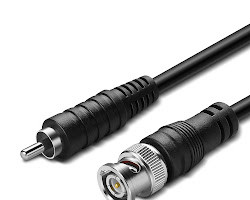
Coaxial cable is a type of analog video connector that is still used in some applications. It is commonly used to connect a cable TV box to a TV.
Coaxial Cable
When choosing a video connector, it is important to consider the capabilities of your TV, smart TV or computer. You should also make sure that the connector you choose is compatible with the ports on both devices.