
HTML Validation, Debugging and Audits
Every other engineering discipline ships with a compiler that rejects mistakes; HTML ships with a parser that fixes them. Quality is therefore a choice and a habit: validate, inspect, audit — the loop in this chapter is what separates pages that work by luck from pages that work by construction.
The validator
What it catches
The W3C/Nu validator reports unclosed tags, invalid nesting, bad attribute values, duplicate ids, and misplaced elements — the mistakes the browser would otherwise silently repair. Most mysterious layout bugs are on this list:
<!-- three errors a validator finds in seconds -->
<div><p>text</div></p>               <!-- misnested -->
<div id="a"></div><div id="a"></div> <!-- duplicate id -->
<p><div>block in paragraph</div></p> <!-- content model violation -->
How to run it
validator.w3.org accepts a URL, an upload, or pasted source. Better: install a browser extension or wire the Nu validator's API into your build — validation that happens only when someone remembers is validation that does not happen.
Errors versus warnings
Errors are spec violations — fix all of them. Warnings are advisory (obsolete attributes, missing section headings) — read and decide. Neither appears in the browser console, which is why the validator must be a separate step.
Rendering modes
Quirks versus standards mode
The doctype chooses the engine's rulebook. Missing or legacy doctypes trigger quirks mode — different box sizing, table alignment, and image baselines that no modern CSS anticipates. The doctype from chapter 2 is what keeps you in standards mode:
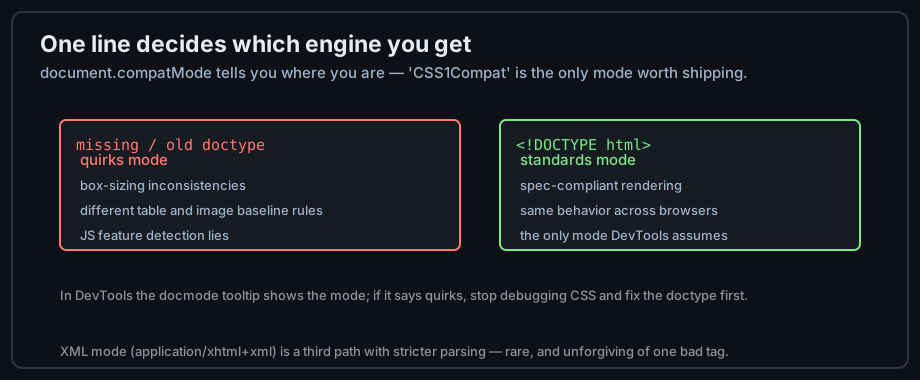
Figure 1 — One line of markup decides which rulebook renders your page.
Detecting the mode
DevTools' Elements panel shows the document mode; in the console, document.compatMode returns "CSS1Compat" (standards) or "BackCompat" (quirks). If a page renders differently from your expectations and compatMode says BackCompat — stop debugging CSS.
console.log(document.compatMode); // "CSS1Compat" is the only good answerThe almost-standards footnote
Legacy doctypes (transitional, frameset) trigger "almost standards" mode, differing only in image baseline handling. There is no reason to be there; the plain HTML5 doctype is correct for every new document.
The DevTools workflow
Source versus live DOM
view-source: shows what you wrote; the Elements panel shows what the parser kept after repairs. The difference between the two is your bug list — relocated tables, invented tbody elements, closed stray tags:
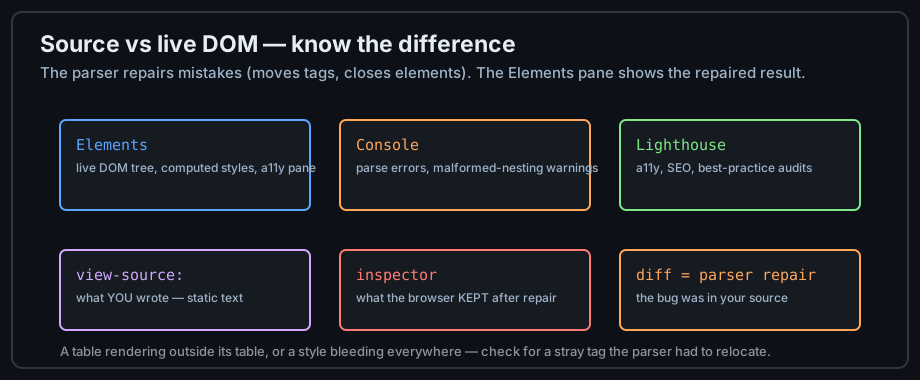
Figure 2 — Source vs inspector: the diff is the diagnosis.
The Elements panel
Live-edit the tree (double-click nodes), inspect computed styles, and read the Accessibility pane — name, role, and state for the selected node. Changes apply immediately and vanish on reload, making it the ideal scratchpad.
The Console
The parser reports some repairs as console warnings ("table opened but not closed"). Treat console output as part of the definition of done — a clean console is a reasonable bar for shipped pages.
Automated audits
Lighthouse
Built into Chrome DevTools, Lighthouse scores performance, accessibility, SEO, and best practices, and links every finding to its explanation. Run it on every page; treat a11y and SEO scores as regression alarms, not vanity numbers.
aXe: the a11y rule engine
The aXe browser extension reports concrete accessibility violations with the failing element and the fix — a faster loop than Lighthouse's page-level score, and it integrates into test suites.
The full loop
Author → validate → inspect → audit → fix → repeat. Run it per page, not per project; the loop is cheap enough to run on every pull request and cheap enough to keep forever:
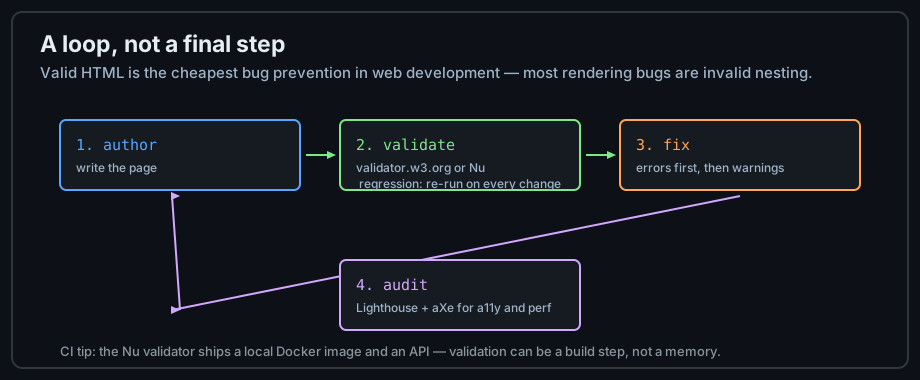
Figure 3 — The quality loop: validation is a step, not an event.
Common mistakes
"It looks fine" as a quality bar
Browsers repair every error, so looking fine proves nothing. The validator plus the a11y pane are the objective bar; "looks fine" is a coincidence until they agree.
Ignoring console warnings
Parser warnings are free diagnosis. Teams that clear console noise ship faster, because the signal survives instead of drowning in a wall of old errors.
Auditing only the homepage
Audits catch per-page defects — a form on page three can fail everything while the homepage scores 100. Automate per-page checks or accept that most of your site never gets audited.
Practice
Exercises
- Validate three of your pages at validator.w3.org; fix every error and re-run until clean.
- Create a quirks-mode page deliberately (remove the doctype) and list three rendering differences you can observe.
- Misnest a table inside a paragraph; compare
view-source:with the Elements panel and document the repair. - Run Lighthouse and aXe on the same page; reconcile their findings into one fix list.
Demo lab
15_embed_iframe.html and 16_loading_hints.html in the Lab Examples page give you pages to run through the whole loop — view, preview, validate, audit.