
HTML Data Tables
Tables are the right tool for exactly one job: data whose meaning changes if you remove a row or column — schedules, price lists, comparisons, results. Every other use of tables (page layout, "just aligning things") is a 1990s habit that modern CSS replaced.
Table anatomy
The building blocks
A table is a composite element: <table> wraps everything, <tr> is a row, and cells are either <th> (header) or <td> (data). The row groups — <thead>, <tbody>, <tfoot> — give the table its long-axis structure:
<table>
  <caption>...</caption>       <!-- the table's title -->
  <thead>                     <!-- column headers -->
    <tr><th scope="col">...</th></tr>
  </thead>
  <tbody>                     <!-- data rows -->
    <tr><td>...</td></tr>
  </tbody>
</table>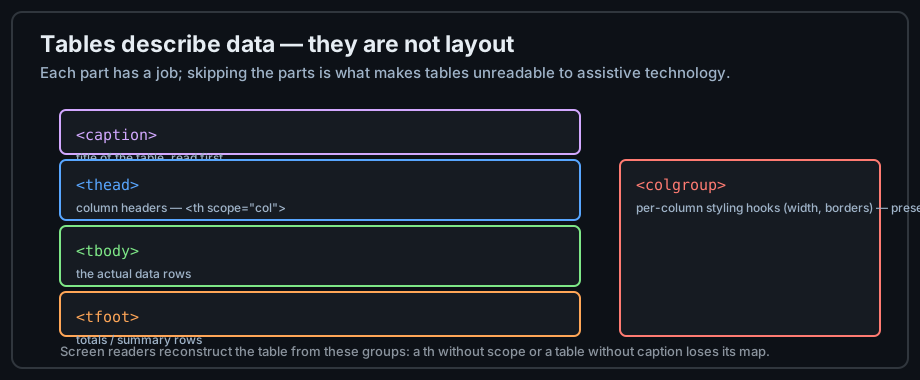
Figure 1 — Each table part has a job; use them all.
The caption
<caption> is the table's title, and it must be the first child of <table>. Screen readers announce it before the data; sighted readers see it centered above the grid. A table without a caption forces every reader to reverse-engineer what the data means.
<caption>Monthly greenhouse temperatures, 2026</caption>Column groups: colgroup
<colgroup> and <col> address whole columns for styling — width, borders, background — without touching any cell. It is purely presentational, which is exactly why it lives apart from the data:
<colgroup>
  <col style="width: 30%">   <!-- first column wider -->
  <col>
  <col>
</colgroup>
A complete example
The data: a logic truth table
The classic first table — Boolean operations — is also a perfect table-data fit: every cell's meaning depends on its row and column headers. Here it is with full markup:
<table class="table table-bordered table-dark">
  <caption>Logical operations on two Boolean values</caption>
  <thead>
    <tr>
      <th scope="col">A</th><th scope="col">B</th>
      <th scope="col">NOT A</th><th scope="col">NOT B</th>
      <th scope="col">A AND B</th><th scope="col">A OR B</th>
    </tr>
  </thead>
  <tbody>
    <tr>
      <td>True</td><td>False</td>
      <td>False</td><td>True</td>
      <td>False</td><td>True</td>
    </tr>
    <tr>
      <td>False</td><td>True</td>
      <td>True</td><td>False</td>
      <td>False</td><td>True</td>
    </tr>
  </tbody>
</table>
The aligned-HTML source trick
Table source is easier to maintain when each source line mirrors one visual row — keep the cells padded so columns line up in your editor. This "aligned HTML" costs nothing at runtime (whitespace collapses) and pays off in every edit:
<table>
   <tr><th>A    </th><th>B    </th><th>A AND B</th></tr>
   <tr><td>True </td><td>False</td><td>False   </td></tr>
   <tr><td>False</td><td>True </td><td>False   </td></tr>
</table>
What the example teaches
- The
classattributes come from Bootstrap's table styles — presentation borrowed from CSS, not from the markup's meaning. - Every header cell is
<th scope="col">, never a bolded<td>. - Indentation of table source is optional for the browser and mandatory for your sanity.
Accessible tables
th versus td
<th> is not "bold <td>" — it declares a header cell, and the browser exposes it as such to assistive technology. Column headers live in <thead>; row headers are <th> cells that start each data row:
The scope attribute
scope="col" and scope="row" tell assistive technology which cells a header governs. With scope, a screen reader can announce "March, Europe: 14°C" instead of two unrelated numbers — the coordinate system that makes a table speakable:
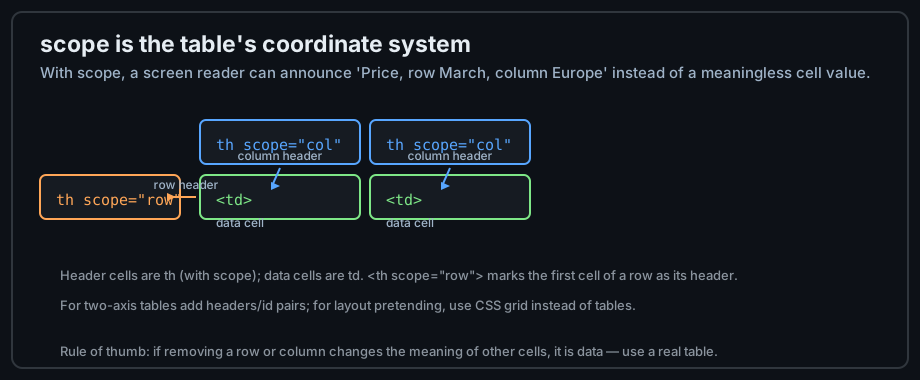
Figure 2 — scope gives each data cell its coordinates.
Complex (two-axis) tables
Tables with multiple header rows or columns need headers/id pairs: every data cell lists the ids of the headers that apply. This is laborious — a signal that the data might be better split into several simple tables, which is nearly always kinder to every reader.
Spanning columns and rows
colspan and rowspan
Cells can span multiple columns (colspan) or rows (rowspan) — for grouping headers like "Q1 Q2 Q3" under a shared "2026" header, or a totals row:
<tr>
  <th colspan="3" scope="colgroup">2026</th>  <!-- covers three columns -->
</tr>
<tr>
  <th scope="col">Q1</th><th scope="col">Q2</th><th scope="col">Q3</th>
</tr>
Use spanning sparingly
Each span makes the table harder to read programmatically and easier to get structurally wrong — a wrong colspan shifts every row after it. Two-axis tables with one span level are the practical sweet spot.
tfoot for totals
Totals and summary rows belong in <tfoot>. Some browsers re-render it at the bottom when printing multi-page tables, and assistive technology treats it as the data's conclusion, not just another row.
Tables are never layout
Why the habit exists
Before CSS layout existed, authors used tables to position everything. It worked badly: pages loaded slowly (tables render only when fully parsed), collapsed on phones, and hid their structure from assistive technology. The habit survived in email HTML, where clients still only render reliably with table layout — that niche is chapter 15's subject.
What to use instead
Modern CSS layout — flexbox and grid — does everything table-layout did, without the semantics lying about your content. If you are structuring a page, use landmarks and CSS; if you are presenting data, use a real table. The distinction is the point.
The one exception
When HTML email forces you into table layout, mark the tables role="presentation" so screen readers skip the table semantics you are not using. Outside email, you will not need this.
Common mistakes
No caption
The most common table defect. Without <caption>, readers must infer the data's subject from its contents — and assistive technology announces a bare grid. One line fixes it; always write it first.
Bold td as headers
Styling cells bold instead of using <th scope> keeps the visual header but deletes the semantic one. Screen readers then read cells with no coordinates. Style <th>; never fake it.
Tables of divs
Building "tables" from stacked divs and CSS grid is fine visually but loses row/column relationships. If the content is genuinely tabular data, the table element is the accessible, responsive, parseable choice — CSS cannot replace its semantics, only its looks.
Practice
Exercises
- Build a weekly schedule table:
<caption>,scope="col"for days,scope="row"for hours. - Add a two-level header with
colspangrouping months under quarters, usingscope="colgroup". - Add a
<tfoot>totals row and verify it prints at the bottom (print preview). - Find a table on a public website, inspect it, and list its accessibility defects — caption, scope, th usage.
Demo lab
06_data_table.html in the Lab Examples page renders a fully scoped table — view the source, then preview it and tab through the cells with a screen reader if available.