
JavaScript in HTML: How the Script Is Wired to the Page
<script> element embeds or loads your code inside an HTML page,
when the browser runs it, and how that code reaches into the page and changes it. After this
lesson you can build and run a small interactive page — the setup for every lesson that follows.
A page is three cooperating files
HTML, CSS and JavaScript, in one loading step
A web page is not one file but a small system. The HTML file is the entry point: the browser
reads it top to bottom, builds the DOM (the page as a tree of objects), loads
the stylesheets and scripts it references, and renders. CSS files describe appearance. JavaScript
files contain the behaviour — and the only connection between a page and its behaviour
is the <script> element.
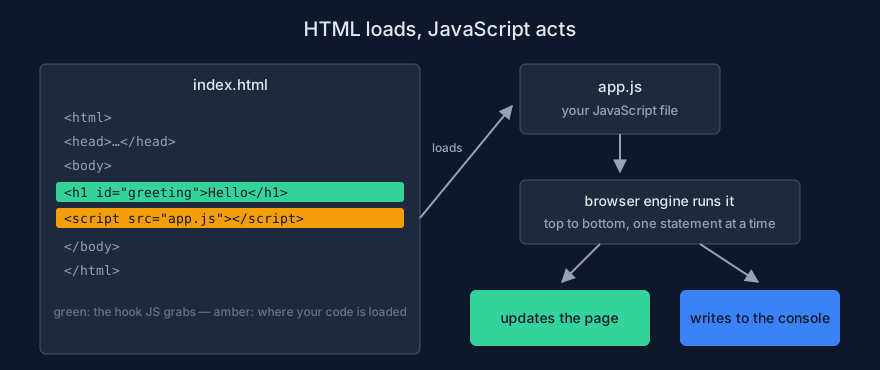
The HTML declares what exists (including a hook: id="greeting"); the script the browser loads reads and changes it.
The contract: declare, then react
Keep this contract in mind for the whole track: HTML declares what exists; JavaScript reacts and updates. Code that quietly expects an element to exist is the source of the most common beginner error — you will meet it below, on purpose.
The <script> element
A minimal document with a script
This is a complete, working HTML page with JavaScript in it. Save it as
first.html, open it in your browser, and open the console:
<!DOCTYPE html>
<html lang="en">
<head>
  <meta charset="utf-8">
  <title>My first scripted page</title>
</head>
<body>
  <h1 id="title">Hello</h1>

  <script>
    // From this line on, the content is JavaScript, not HTML.
    console.log("The page says hi");
  </script>
</body>
</html>
You should see in the console: The page says hi, and the page
shows a big "Hello" heading — which the script did not draw; the HTML did.
If you get this instead: nothing in the console — check that the tag is spelled
<script> (not <scripts>) and that you saved the file before
opening or reloading it.
Inline or external file?
JavaScript can live inside the HTML (above) or in its own file loaded with
src. Both run identically; the difference is organization:
<!-- inline: fine for a tiny, page-specific snippet -->
<script>
  console.log("inline");
</script>

<!-- external: the normal choice for anything real -->
<script src="app.js"></script>
External files win for three reasons: the same code can serve many pages; the browser caches
the file and stops re-downloading it; and HTML stays readable. The one rule that trips beginners
is the path in src: src="app.js" means
same folder as the HTML file; src="js/app.js" means a subfolder named
js; src="/app.js" means from the root of the site — that one
silently fails when you open the file from disk instead of a server.
Placement and loading order
The classic beginner error
The browser runs a script the moment it reaches it, while still reading the HTML. So this page fails:
<head>
  <script>
    // The browser has not built the body yet — there is no #title!
    const title = document.querySelector("#title"); // null
    title.textContent = "Hello";                    // TypeError!
  </script>
</head>
You should see in the console:
Uncaught TypeError: Cannot set properties of null (setting 'textContent')
Read it with the habit from lesson 01: the value was null ("nothing"), and you
cannot set a property on nothing. The cause is timing, not spelling: the script ran
before the element existed. There are three fixes, and one of them is the everyday default.
defer, async, module — what the timeline means
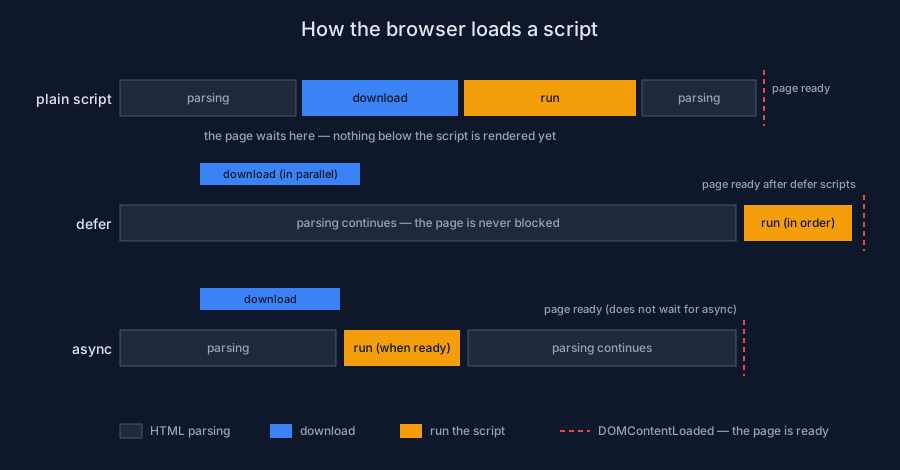
A plain script pauses the whole page while it downloads and runs. defer downloads in parallel and runs after parsing; async runs whenever it is ready, in unpredictable order.
| How you load it | When it runs | Use it when |
|---|---|---|
plain <script> | immediately, blocking the parser | almost never, in the head |
<script src defer> | after HTML is parsed, in order | default choice for app code |
<script src async> | as soon as downloaded, any order | independent widgets, analytics |
<script type="module"> | like defer, plus imports | multi-file apps (lesson 13) |
Demo foundations/06_defer_vs_async.html demonstrates the difference live — predict
the console order before you preview it.
Connecting code to the page
Selecting an element
document is the live page, provided by the browser. Its most used method,
querySelector, takes any CSS selector and returns the first matching
element — or null if there is none:
const title = document.querySelector("#title");   // by id — the usual case
const warning = document.querySelector(".warning"); // by class
const firstList = document.querySelector("ul");     // by tag
If you get null: the selector matched nothing. Check spelling
(#titel finds nothing quietly) and check timing — the section above.
Reading and writing content
const title = document.querySelector("#title");

title.textContent = "Hello, JavaScript"; // write: replace the text, safely
console.log(title.textContent);          // read: what does it say now?
textContent treats everything as plain text — it is the safe default. Its cousin
innerHTML parses the string as HTML, which is powerful for your own markup and
dangerous with anything a user typed (it is how sites get hacked; stay on
textContent until lesson 14).
Reacting to the user
The page should respond when something happens. You hand the browser a function and the event that triggers it:
const button = document.querySelector("#save");

// "when a click happens on this button, run this function"
button.addEventListener("click", function () {
  console.log("The button was clicked!");
});
Nothing runs as you write this line — the function is stored and runs later, once per click. This "run it later" pattern is why functions exist, and lesson 08 makes them solid.
A complete example: a click counter
<!DOCTYPE html>
<html lang="en">
<head><meta charset="utf-8"><title>Counter</title></head>
<body>
  <button id="increment">Clicked 0 times</button>
  <p id="milestone">Click the button.</p>

  <script>
    let count = 0; // state: remembers the count between clicks

    const button = document.querySelector("#increment");

    button.addEventListener("click", function () {
      count = count + 1;
      button.textContent = "Clicked " + count + " times";

      if (count === 10) {
        document.querySelector("#milestone").textContent = "Ten!";
      }
    });
  </script>
</body>
</html>
You should see: the button label climbing with every click, and the paragraph
changing at ten. Read it again and name each part: state (count), wiring
(addEventListener), updating the page (textContent), and one condition.
Demo foundations/08_click_counter.html is this exact file, with more comments.
Where the output goes
The page is the product; the console is diagnostics
You now have two output channels, and choosing between them is a real skill:
changes the user should see go to the page (textContent and
friends); observations for you, the developer, go to the console. The console
family is worth knowing early:
console.log("normal progress notes");
console.warn("something looks off, but it still works");
console.error("something failed");
console.table(["a", "b", "c"]); // arrays and objects, as a sortable table
When nothing seems to happen
The three checks, in order: (1) is the console open at all? (2) is there a red error — read its
line number; (3) did your file load — add a console.log("loaded") as the first line
of the file, and if it never appears, the src path is wrong. Ninety percent of
"my JavaScript does not work" is one of these three.
When file:// is not enough
Why the browser refuses file://
Opening an HTML file from disk gives it the address scheme file://. Plain scripts
work fine that way, but two features refuse it for security reasons: type="module"
scripts and fetch (network requests). The console tells you unmistakably — you will
see a CORS or Access to script … has been blocked error.
Run a local server
The fix is a tiny local web server, which serves your folder over http://localhost:
python -m http.server 8000 # then open http://localhost:8000/first.htmlIn VS Code, the free Live Server extension does the same with a click and reloads the page when you save. From here on, the track's module demos expect a local server; everything else previews straight from disk.
Practice: wire a page
The task
From the Lab Examples page, preview
foundations/04_script_inline.html, foundations/05_script_external.html,
and foundations/08_click_counter.html; then predict the console order of
foundations/06_defer_vs_async.html before previewing it. Finally, rebuild the
counter from an empty file without looking at the demo.
The checklist
- You can explain why the head-script example reads
null— and name two fixes. - You know which loading attribute is the everyday default (
defer) and why. - You can select an element, change its text, and react to a click, from memory.
- You know when
file://stops working and how to run a local server. - You rebuilt the counter from scratch and it worked — or you debugged it with the three checks above.