
Elixir: Install & Toolchain
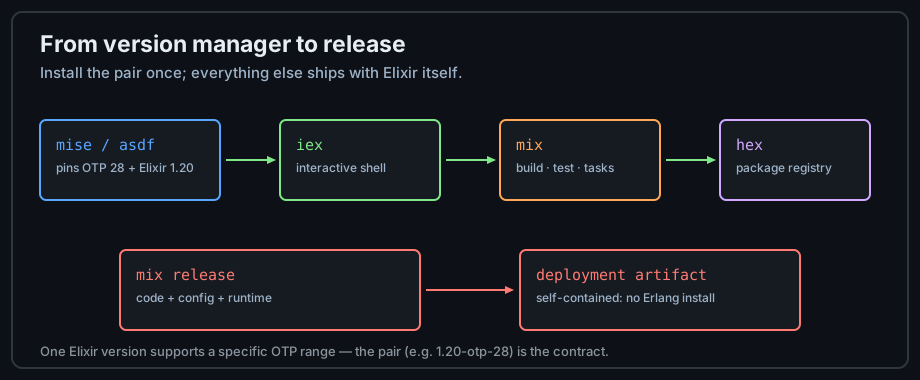
iex), the build tool (mix), and the package registry
(hex). This lesson installs all of it, verifies each layer, and sets up the editor
integrations you will use for the rest of the track.
The Toolchain Stack
It helps to know what you are installing. Elixir does not ship its own virtual machine — it compiles
to the same bytecode as Erlang, so a matching Erlang/OTP release is a hard prerequisite. One Elixir
version supports a specific range of OTP versions; when you see the pair written as
1.20-otp-28, that is the contract.
Install Paths
Version managers (recommended)
A version manager installs OTP and Elixir side by side and lets you switch per project — the same
role pyenv plays for Python or rustup for Rust.
# Using mise (the modern version manager for the BEAM)
mise use -g erlang@28
mise use -g elixir@1.20

# Or the classic asdf flow
asdf plugin add erlang https://github.com/asdf-vm/asdf-erlang.git
asdf plugin add elixir https://github.com/asdf-vm/asdf-elixir.git
asdf install erlang 28.0
asdf install elixir 1.20.0
asdf global erlang 28.0
asdf global elixir 1.20.0
Official installers and Docker
Windows and macOS have official installers from the Elixir team, and most Linux distributions ship packages (often older). For CI or evaluation without any install, use the official Docker image:
# Pin both the Elixir and OTP versions explicitly
docker run --rm -it elixir:1.20-otp-28 iex

# Or use Docker as your whole dev environment
docker run --rm -it -v "$PWD":/app -w /app elixir:1.20-otp-28 bash
Verify Each Layer
Run these four commands after installing. They confirm the runtime, the shell, the build tool, and the package manager independently — so if something is broken you know which layer.
elixir -v        # prints Elixir and Erlang/OTP versions
iex              # opens the interactive shell (exit with Ctrl+C twice)
mix --version    # build tool
hex --version    # package manager (install with: mix local.hex)
Your First Session
iex is the fastest way to feel the language: every expression is evaluated and printed
immediately, exactly like a Python REPL — with the twist that you can spawn processes and inspect
the runtime from the same prompt.
iex> 40 + 2                 # every expression returns a value
42
iex> "elixir" |> String.upcase()   # the pipe works in the shell too
"ELIXIR"
iex> self()                 # iex itself is a BEAM process with a pid
#PID<0.108.0>
iex> Process.info(self())[:memory]   # inspect your own process heap
16864
iex> h String.split         # h/1 opens the docs for any function
Editors and Livebook
- VS Code / JetBrains — install ElixirLS (or the newer Expert server) for completion, inline docs, and the debugger. It reads the same compile artifacts as
mix. - Livebook — an interactive notebook for Elixir with markdown + code cells, visual outputs, and
Mix.installfor dependencies. Install withmix install livebookand runlivebook server. Excellent for exploring Nx and data work in Numerical & Embedded Elixir. - Formatter — ships with Elixir; run
mix formatand commit a.formatter.exsso the whole team's code looks identical.
The Mix Project Skeleton
Create your first project now — every later chapter assumes this shape.
mix new explorer --module Explorer
cd explorer
mix test          # the generated project ships with one passing test
tree -L 2 # inspect the layout below| Path | Purpose |
|---|---|
mix.exs | Project definition: app name, version, dependencies, and callbacks |
lib/ | Your compiled source (one module per file, by convention) |
test/ | ExUnit tests mirroring the lib/ layout |
config/ | Compile-time configuration |
mix.lock | Exact dependency versions — commit it |
Practice
- Install Elixir 1.20 on your machine (or run it in Docker), then paste the
iexsession above and confirm every line works. - Create the
explorerproject and add one function tolib/explorer.ex; runmix testagain. - Start Livebook, create a notebook, and install one Hex package in a cell with
Mix.install([{:req, "~> 0.5"}]). - Write down which command you would run to check why a build fails before blaming your code: the shell, the build tool, or the package manager?
Next: Syntax & Expressions