
Lists, Links and URLs
These two topics travel together: a menu is a list of links, a table of contents is a list of fragment links, and breadcrumbs are a list of URLs. Master them as a pair and half of everyday page authoring is done.
The three list elements
Unordered lists: ul
<ul> is a group of items where order carries no meaning — features of a product, tags on an article, options in a menu. Each item is an <li>. The bullet is default styling, not part of the semantics:
<ul>
  <li>Semantic markup</li>
  <li>Accessible by default</li>
  <li>Works without JavaScript</li>
</ul>
Ordered lists: ol
<ol> is a group where the sequence is the meaning — steps of a procedure, rankings, priority lists. The numbers are generated by the browser, so they always stay correct when you insert or reorder items:
<ol>
  <li>Create the file</li>
  <li>Write the skeleton</li>
  <li>Validate the result</li>  <!-- numbers update automatically on reorder -->
</ol>
Description lists: dl
<dl> holds name–value pairs: a term <dt> followed by its description <dd>. Glossaries, FAQ pairs, and metadata groups are its natural habitat:
<dl>
  <dt>Element</dt>
  <dd>A part of the document tree with meaning.</dd>
  <dt>Attribute</dt>
  <dd>A setting that configures an element.</dd>
</dl>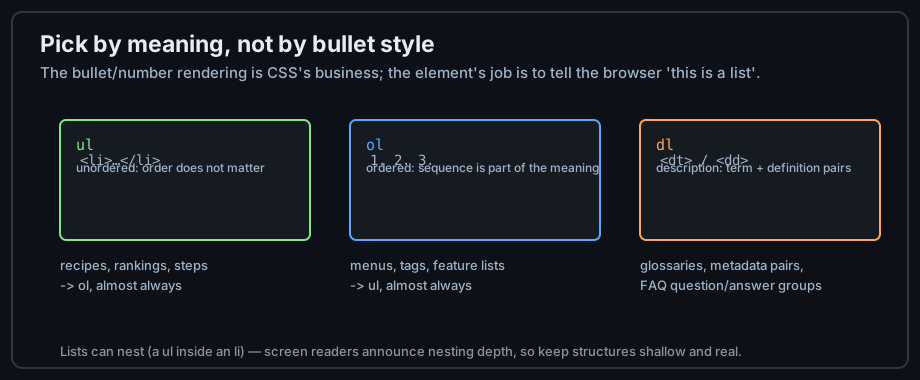
Figure 1 — Three list elements, three kinds of grouping.
Nesting lists
A list inside an item
Lists nest by placing a complete <ul> or <ol> inside an <li> — never as a direct child of the list, and never between items:
<ul>
  <li>Front-end
    <ul>
      <li>HTML</li>
      <li>CSS</li>
    </ul>
  </li>
  <li>Back-end</li>
</ul>
What assistive technology announces
Screen readers announce nesting depth ("list, 2 items" on entry), so shallow nesting helps comprehension. Three levels is usually the practical ceiling; beyond that, consider whether the structure is really a list or an outline looking for headings.
Lists are not layout
Wrapping page sections in lists to remove bullet points in CSS is a misuse. Lists describe groups of like items; page regions are landmarks (chapter 9). If removing the bullets is the only reason you reached for <ul>, you probably wanted semantic containers instead.
Understanding URLs
The parts of a URL
A URL names a resource and says how to fetch it. Scheme, host, path, query, and fragment each play a different role, and the fragment is the odd one out — it never reaches the server:
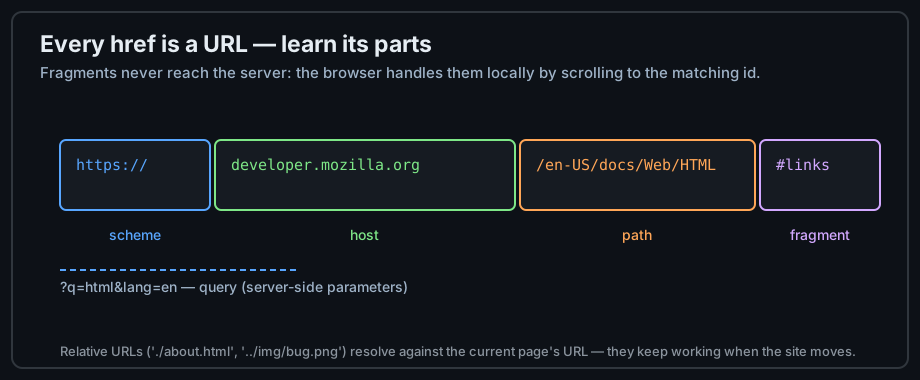
Figure 2 — Anatomy of a URL.
Relative versus absolute
An absolute URL is complete ("https://sagecode.org/roadmap/html/"); a relative URL is resolved against the current page's URL. Use relative paths for pages inside your own site — they keep working when you move domains — and absolute URLs for cross-site links and canonical metadata:
<!-- same folder -->
<a href="tables.html">Data Tables</a>
<!-- one level up, then into img/ -->
<img src="../img/ledy-bug.png" alt="A ladybug">
<!-- from the site root -->
<a href="/roadmap/html/">HTML roadmap</a>
URL encoding
URLs cannot contain spaces or reserved characters, so they are percent-encoded: a space becomes %20, and & inside a query value becomes %26. In href attributes, always escape a literal & as & — chapter 3 showed why.
The anchor element
Five jobs, one element
<a> navigates to pages, to fragments of the current page, to email, to phone numbers, and to downloads. The href value decides the job:
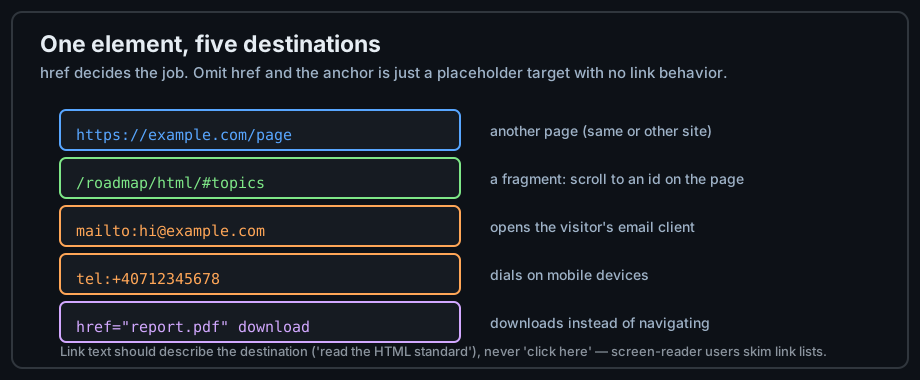
Figure 3 — One element, five destinations.
Fragments: linking inside a page
A fragment link (href="#id") scrolls to the element with that id. Every heading in this track's pages carries a stable id for exactly this purpose:
<h2 id="fragments">Fragments</h2>
<a href="#fragments">Jump to Fragments</a>   <!-- scrolls to the heading -->
Mail, phone, and downloads
mailto: opens the visitor's mail client, tel: dials on mobile, and the download attribute offers a file for saving instead of navigation:
<a href="mailto:hello@example.com">Email us</a>
<a href="tel:+40712345678">Call us</a>
<a href="/files/spec.pdf" download>Download the spec</a>
Link text and accessibility
Describe the destination
Screen-reader users navigate by pulling up a list of links, stripped of surrounding text. "Click here" and "read more" are meaningless in that list; "the HTML living standard" is self-sufficient. Write link text that survives being read alone.
Opening new tabs responsibly
If a link opens in a new tab, say so in the text — surprising navigation disorients people, and target="_blank" should always travel with rel="noopener noreferrer" for security (chapter 15 explains why):
<a href="https://developer.mozilla.org" target="_blank"
   rel="noopener noreferrer nofollow">MDN (opens in a new tab)</a>
Linking images
When an image is the only content of a link, its alt becomes the link text and must describe the destination, not the picture. An icon-only link without alt text is announced as just "link" — a dead end for assistive technology.
Common mistakes
"Click here" text
Bad for screen readers, bad for SEO, and worse for everyone skimming. The fix is mechanical: put the destination name in the anchor. Compare "Click here for the spec" with "read the HTML standard" — same link, different usefulness.
Broken relative paths
Relative URLs resolve against the current page's location, so a path that works on the home page breaks in a subfolder. When a link 404s, resolve it by hand: from /roadmap/html/, the href img/bug.png points to /roadmap/html/img/bug.png. Test pages from a local server, not from the file system, so relative paths behave as they will in production.
Menus without lists
A navigation bar built from bare <a>s in <div>s loses its most useful semantics: "this is a menu of N items". Wrap navigation in <nav> around a <ul> of <li><a> — styling can remove the bullets; the meaning should stay.
Practice
Exercises
- Build a glossary page with a
<dl>of five terms, each anchored (id="term-..."), plus an alphabetical index of fragment links at the top. - Create a multi-page mini site with relative links in both directions, then move the folder one level deeper and fix every path.
- Add a
mailto:link with subject and body parameters, remembering to escape the&. - Audit three pages you like: list every "click here" you find, and rewrite the link text as if it would be read alone.
Demo lab
04_lists_and_links.html in the Lab Examples page demonstrates all three list types and every anchor job — view the source, then preview it and try the fragment links.