
HTML Document Structure and Metadata
<html>, <head>, <body>. This chapter explains what each part is for, what belongs in the <head>, and how the browser turns your file into a rendered page.
Structure is the one part of a page you cannot patch later. Styles can be swapped and scripts rewritten, but a document with a broken skeleton fights every tool that touches it afterward: CSS selectors misfire, screen readers lose the outline, crawlers guess wrong. Build the skeleton deliberately and everything downstream gets easier.
Why structure matters
One page, three audiences
Your page is read by three audiences at once. People see the rendered body. Machines — crawlers, social cards, validators — read the head and the semantics. Assistive technology navigates the structure as an outline, like a book's table of contents. Plain, predictable structure serves all three at the same time; clever structure serves none of them.
The maintenance argument
Beginners usually ask "how it looks" first. Ask "what it means" instead. When the structure is clear, adding CSS is styling rather than surgery, adding JavaScript is attaching behavior to stable hooks, and six months later you can still find things. Structure is the part of the page you stop seeing immediately and keep paying for continuously.
The read-it-naked test
Disable CSS (DevTools can do this) and read your page. If it still makes sense — headings in order, content in a sensible sequence, labels attached to fields — the structure is good. This one test catches most structural debt before it accumulates.
Doctype and parsing modes
The doctype is a switch
<!DOCTYPE html> is not an element — it is an instruction that puts the browser into standards mode. Without it, the browser drops into quirks mode, silently emulating 1998 layout bugs that no modern CSS expects. The doctype must be the very first line of the file.
<!DOCTYPE html>
<html lang="en">
Why quirks mode hurts
Quirks mode changes box sizing, table alignment, and image baselines — subtle differences that surface as "the same CSS renders differently in my two pages". DevTools shows the rendering mode in the Elements panel; if you see quirks mode, stop debugging CSS and fix the doctype first.
The html element and lang
<html lang="en"> is the root of the tree, and its lang attribute declares the page's language. Screen readers choose a pronunciation voice from it, spellcheckers and translators key off it, and search engines use it for hreflang matching. It is one attribute, on one element, with page-wide effect — never omit it.
Head and body
The skeleton
The full skeleton is small enough to memorize, and you will type it hundreds of times:
<!DOCTYPE html>
<html lang="en">
<head>
  <meta charset="utf-8">
  <meta name="viewport" content="width=device-width, initial-scale=1.0">
  <title>Page Title</title>
</head>
<body>
  <header>...</header>
  <main>...</main>
  <footer>...</footer>
</body>
</html>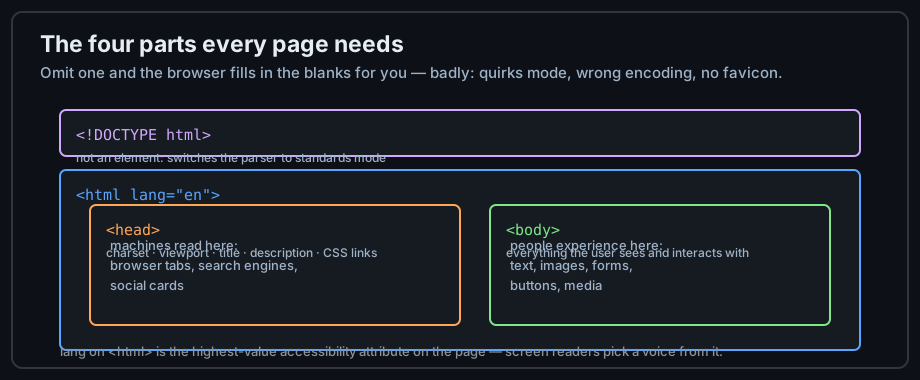
Figure 1 — The four parts every page needs.
The head is for machines
Nothing in the <head> renders in the page — it briefs the browser, the crawler, and the social card generator. The inventory, in the order to write it:
<head>
  <!-- 1. encoding first: it must be in the first 1024 bytes -->
  <meta charset="utf-8">
  <!-- 2. responsive behavior on phones -->
  <meta name="viewport" content="width=device-width, initial-scale=1.0">
  <!-- 3. identity: tab text, bookmark label, search snippet -->
  <title>Document Structure - Sage-Code</title>
  <meta name="description" content="What belongs in head and body, and why.">
  <!-- 4. styles and scripts -->
  <link rel="stylesheet" href="/assets/css/site.css">
  <script src="/assets/js/app.js" defer></script>
</head>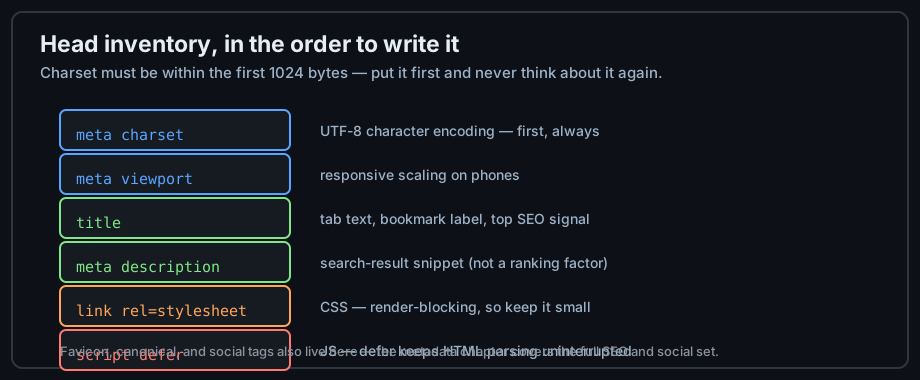
Figure 2 — Head inventory, in the order to write it.
The body is for people
Everything rendered lives in the <body>. Its direct children should read like a book's structure: a <header> for site identity, a <nav> for the menu, one <main> for the page's unique content, and a <footer>. Chapter 9 develops these landmarks in depth — here, place them and keep exactly one visible <main>.
How parsing works
Bytes to DOM
The parser reads the file top to bottom, converts bytes into tokens, and grows the tree as tags open and close. That is why order matters: a script in the middle of the document runs before the elements below it exist, and a stylesheet in the head blocks rendering of everything until it arrives.
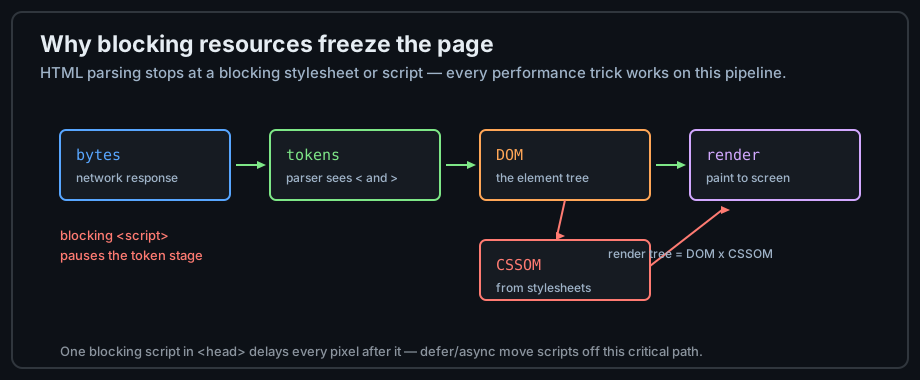
Figure 3 — From bytes to pixels; blocking resources pause the middle of the pipeline.
The parser repairs, never complains
HTML parsing never halts on an error. Unclosed tags get closed, misplaced tables get relocated, stray text gets absorbed — and the page looks fine while meaning something else. The Elements panel shows the repaired result, which is how you catch these silent repairs before they become layout mysteries.
Nesting and reading order
Keep nesting shallow — most pages never need more than three or four levels. Do not jump from <h2> to <h5> without reason; heading levels form the outline assistive technology navigates. And remember that source order is reading order: the DOM sequence is what a screen reader announces and what a keyboard user tabs through, regardless of where CSS later places things.
Body layout with landmarks
The five landmarks
Landmark elements name the regions of your page. Browsers expose them to assistive technology as navigable regions, so a screen-reader user can jump straight to navigation or content:
<body>
  <header><!-- site identity, logo --></header>
  <nav><!-- primary menu --></nav>
  <main>
    <h1>Page subject</h1>
    <section>...</section>
  </main>
  <aside><!-- related links, ads --></aside>
  <footer><!-- copyright, colophon --></footer>
</body>
Rules of thumb
Three rules cover 95 percent of cases. Exactly one visible <main> per page. <nav> for major navigation lists only, not for every link group. And <header>/<footer> are scoped — inside a <section> or <article> they mean "header of that piece", not of the page.
When landmarks are not enough
Landmarks describe page architecture, not every grouping. For content blocks with no better name, <section> needs a heading and <div> needs nothing — the decision tree in chapter 9 walks the full choice.
Checklist
Before you style, verify
- Doctype is the first line and
langis set on<html>. <head>declares charset, viewport, title, and description — in that order.- The body has one
<main>, and its landmarks are<header>/<nav>/<footer>. - Heading levels step down without gaps.
- The page still reads correctly with CSS disabled.
Demo lab
Run 02_document_structure.html from the track's Lab Examples — view the source, then preview the page in a browser and compare the two views.