
HTML Syntax and Elements
You will write HTML in every web project you ever touch. Frameworks come and go, but they all emit HTML, and the browser only ever understands HTML. That makes the syntax in this chapter the most durable skill in front-end development: learn it once, use it for decades.
What HTML is
A markup language, not a programming language
HTML has no variables, no loops, and no logic. It is a markup language: you wrap content in tags that describe what the content is. Where a programming language tells the machine what to do, HTML tells the browser what things mean — this text is a heading, that image is a figure, this collection is a list.
This is not a limitation to apologize for. Meaning is exactly what browsers, search engines, and screen readers need, and it is what CSS and JavaScript attach their behavior to.
The three languages of the web
A web page is built from three cooperating languages. HTML supplies structure, CSS supplies presentation, and JavaScript supplies behavior. The classic division of labor:
<!-- HTML: what it is -->
<button class="cta" id="signup">Sign up</button>
/* CSS: what it looks like */
.cta { background: #58a6ff; border-radius: 6px; }// JavaScript: what it does
document.getElementById('signup').addEventListener('click', startSignup);Keep the separation honest in your head even when files merge in practice: if you catch yourself adding HTML just to make something look right, the styling belongs in CSS; if you add markup only to power a script, check whether a semantic element already provides the behavior.
What the browser does with your file
When you open an .html file, the browser parses it top to bottom, builds a tree of elements called the DOM, fetches the resources the <head> requests, and only then paints. Every chapter of this track operates on some stage of that pipeline, which is why we show it early:
<!DOCTYPE html>
<html lang="en">
<head>
  <meta charset="utf-8">
  <title>My first page</title>
</head>
<body>
  <h1>Hello, web!</h1>
  <p>This is my first HTML page.</p>
</body>
</html>
Type this into a file named index.html and open it in a browser. Everything else in this track is elaboration on these ten lines.
Anatomy of an element
Tags, content, and attributes
Most of HTML is one pattern repeated: an opening tag, optional attributes, content, and a closing tag. The tag name is case-insensitive but always written lowercase; attribute values sit in quotes.
<a href="https://developer.mozilla.org">MDN Web Docs</a>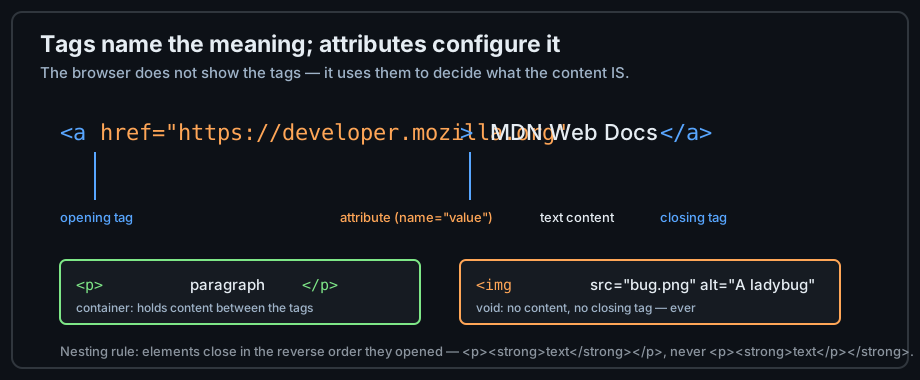
Figure 1 — An element is opening tag + attributes + content + closing tag.
Attributes carry configuration
Attributes never display by themselves; they configure the element they sit on. href gives a link its destination, src gives an image its file, id and class hand CSS and JavaScript their hooks. Some attributes take values, some are boolean — see the next section. A few attributes are required for the element to make sense at all: an <img> without alt is incomplete markup, not just an accessibility nit.
<!-- Several attributes combine to configure one element -->
<img src="/roadmap/html/img/ledy-bug.png" alt="Ladybug on a leaf" width="320">
Nesting elements
Elements contain other elements, and that containment must be balanced: whatever opens last closes first. Think of it as a stack — the browser is strict about the order, and getting it wrong changes the tree it builds.
<!-- correct: strong opens and closes inside the paragraph -->
<p>HTML is <strong>the</strong> foundation.</p>

<!-- wrong: the tags overlap instead of nesting -->
<p>HTML is <strong>the</p></strong> foundation.<!-- parse error -->
The browser will silently repair the wrong version rather than report an error, and the repair it chooses may not be the structure you intended. That is why the W3C validator (chapter 13) is worth running on every page you write.
Three element shapes
Almost every element in HTML belongs to one of three shapes. Learning to classify an element at a glance tells you how to write it, what it may contain, and which mistakes to watch for.
Container elements
Containers hold content between an opening and a closing tag. <p>, <div>, <section>, <h1> — all containers. The closing tag is part of the element, not an option:
<p>A paragraph is a container. Its closing tag is not optional.</p>Void elements
Void elements cannot hold content, so they have no closing tag at all. The everyday set is small: <br>, <hr>, <img>, <input>, <meta>, <link>, <source>, <track>, <area>, <base>, <col>, <embed>, <wbr>.
<br>              <!-- line break -->
<img src="bug.png" alt="A ladybug">   <!-- image: content lives in attributes -->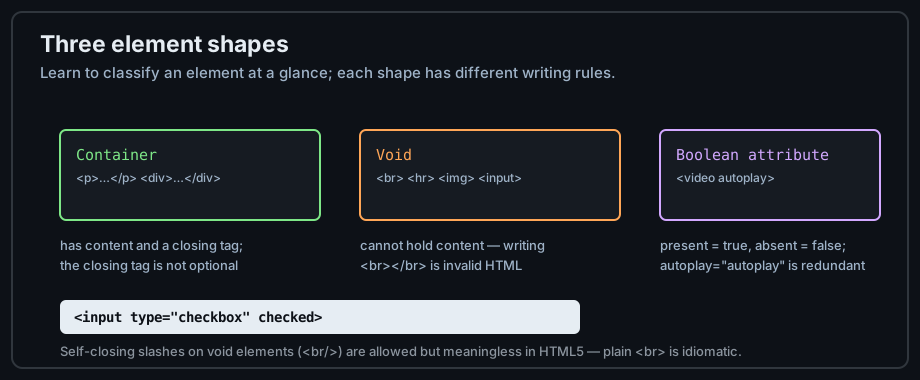
Figure 2 — Container, void, and boolean-attribute shapes.
Boolean attributes
Some attributes are boolean: their presence means true and their absence means false. checked, disabled, required, autoplay, defer. Writing a value is allowed but redundant — checked="checked" means exactly the same as checked.
<input type="checkbox" checked>         <!-- on -->
<input type="checkbox">                <!-- off -->
<script src="app.js" defer></script>   <!-- download now, run later -->
The document tree
From nesting to tree
When the parser reads your nesting, it builds a tree: <html> is the root, with exactly one <head> and one <body>, and every element you write hangs from one of them. Parents, children, and siblings are tree words you will use daily — a <li>'s parent is its <ul>; two paragraphs in a section are siblings.
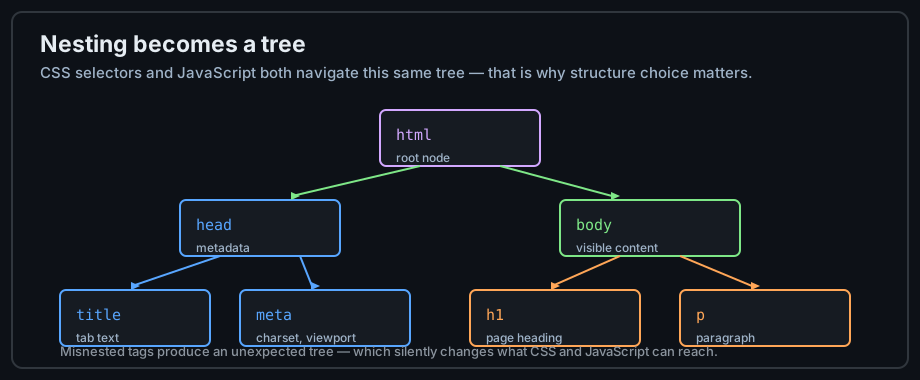
Figure 3 — Nesting in the source becomes a tree in memory.
Why the tree matters
CSS selectors and JavaScript both traverse this same tree. nav a means "every <a> inside a <nav>"; element.parentElement is exactly what it sounds like. If your nesting is wrong, the tree is wrong, and everything that depends on the tree — styles, scripts, the accessibility tree — inherits the mistake.
Inspect the tree yourself
Open any page, right-click, and choose Inspect. The Elements panel shows the live tree the browser actually built — not your source file. Comparing the two is the fastest debugging skill you can develop, and chapter 13 turns it into a workflow.
Text, whitespace, and comments
Whitespace collapsing
The browser turns any run of spaces, tabs, or newlines in normal text into a single space. Your indentation is for readers of the source, never for layout:
<p>
    This    sentence
    has messy     source formatting.
</p>
<!-- renders as: This sentence has messy source formatting. -->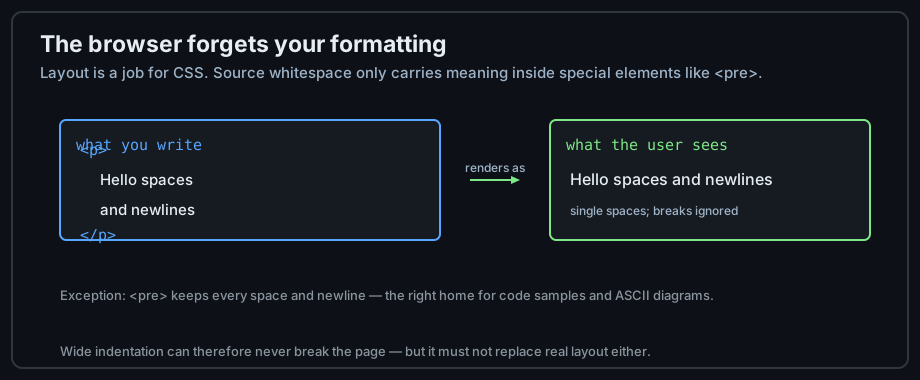
Figure 4 — Whitespace collapsing: source formatting never becomes layout.
The one exception: preformatted text
Inside <pre> the browser preserves every space and newline — that is where code samples and ASCII diagrams belong. Note that <pre> changes rendering, not meaning: for actual code samples, pair it with <code> as this lesson does.
Comments
Comments live between <!-- and -->, are never rendered, and never execute. Use them to explain why the markup looks the way it does — the same didactic habit this track's code examples follow:
<!-- Contact section: keep the mailto in sync with the footer -->
<section id="contact">
  <h2>Contact</h2>
  <p>Email: hello@example.com</p>
</section>
Block and inline flow
Block boxes
Block elements start on a new line and stretch across the available width by default: headings, paragraphs, lists, <div>, <section>. They stack vertically like paragraphs in a book.
Inline boxes
Inline elements flow inside a line of text, like words do: <strong>, <em>, <a>, <span>, <code>. They wrap from line to line and ignore width and height in plain HTML.
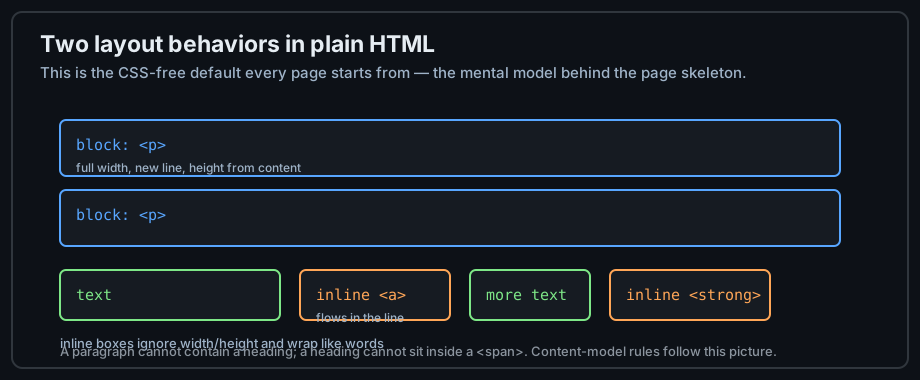
Figure 5 — Blocks stack; inlines flow within a line.
Content models follow the flow
These two behaviors explain most of HTML's nesting rules. A block can usually contain both blocks and inlines; an inline may only contain text and other inlines. That is why a <span> cannot legally contain a heading, and why a paragraph cannot contain a list. The formal names for these categories are the content models in the specification, and the validator checks them.
HTML entities
Reserved characters
Four characters have special meaning in HTML syntax and cannot appear as literal text: <, >, &, and " inside attribute values. To show them as text, write an entity — an ampersand, a mnemonic, a semicolon:
| You want | Entity | Meaning |
|---|---|---|
| < | < | Less than — starts a tag |
| > | > | Greater than — ends a tag |
| & | & | Ampersand — starts every entity |
| " | " | Double quote (inside attribute values) |
| Non-breaking space | |
| © | © | Copyright sign |
| → | → | Rightwards arrow |
Writing entities correctly
The most common entity bug is a raw & in a URL or text — technically invalid and occasionally fatal to parsers. Another classic: pasting code that discusses HTML into a page without escaping it, which is exactly why this chapter's own examples display tags as text.
<!-- wrong: the & breaks the link URL -->
<a href="/search?q=html&page=2">Results</a>
<!-- right: escape the ampersand -->
<a href="/search?q=html&page=2">Results</a>When not to use entities
With UTF-8 declared in the <head>, ordinary accented characters and emoji can be typed directly — é and é are equivalent, and the raw character is easier to read. Reserve entities for the reserved characters and a handful of typographic cases like .
Common mistakes
Misnested tags
The single most common HTML error. The browser repairs it silently, and the repair can move elements somewhere you did not intend — the classic symptom is a table or list rendering outside the element that contains it.
<!-- wrong: b closes after i opened inside it -->
<p><b>bold <i>italic</b> text</i></p>

<!-- right: close in reverse order -->
<p><b>bold <i>italic</i></b> text</p>
Uppercase tags and unquoted values
Both parse, neither is idiomatic. HTML tolerates <DIV CLASS=box>, but every style guide — and every codebase you will join — writes lowercase tags and quoted attribute values. Consistency is worth more than the tolerance.
Div soup
A <div> for everything produces pages that work but mean nothing. Before reaching for a <div>, ask whether a semantic element fits — that habit is the subject of chapter 9, and it starts here.
<!-- meaningless -->
<div class="title">Pricing</div>

<!-- meaningful: a real heading the outline can use -->
<h2>Pricing</h2>
Practice
Exercises
- Type the ten-line document from the start of this chapter by hand — no copy-paste — and open it in a browser.
- Add a comment above each element explaining in one line why it is there.
- Deliberately misnest two tags, then open the DevTools Elements panel and find the repair the parser made.
- Display the text
<p> is a paragraphon your page — it only renders if the entities are right.
Demo lab
The track's Lab Examples page has a runnable demo for this chapter — 01_hello_world.html and 02_document_structure.html — each with a link to view the source and a link to open the rendered page in a browser.
<head> is really for.